
Response to Compromised or Breach Email (in progress)
If a user has their email and/or password compromised, please follow the instructions below as quickly as possible to secure the account.
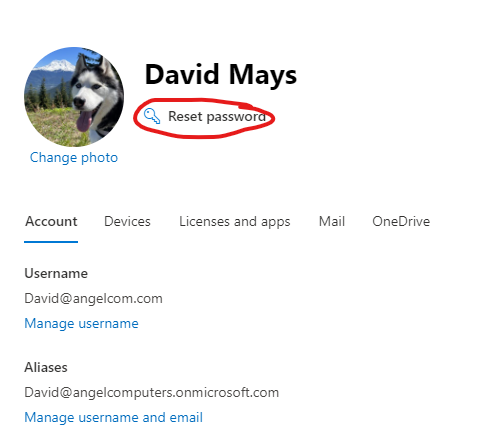
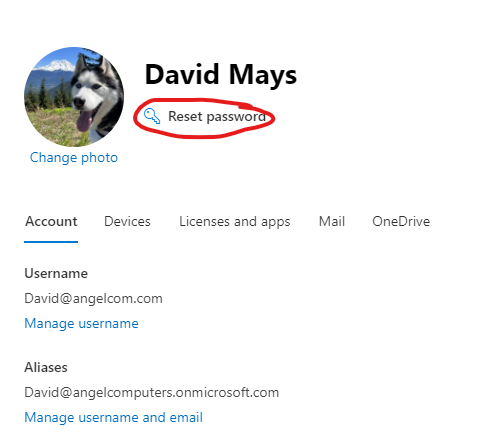
- Reset User Password in the Office 365 admin page, Admin Portal Users>Active Users
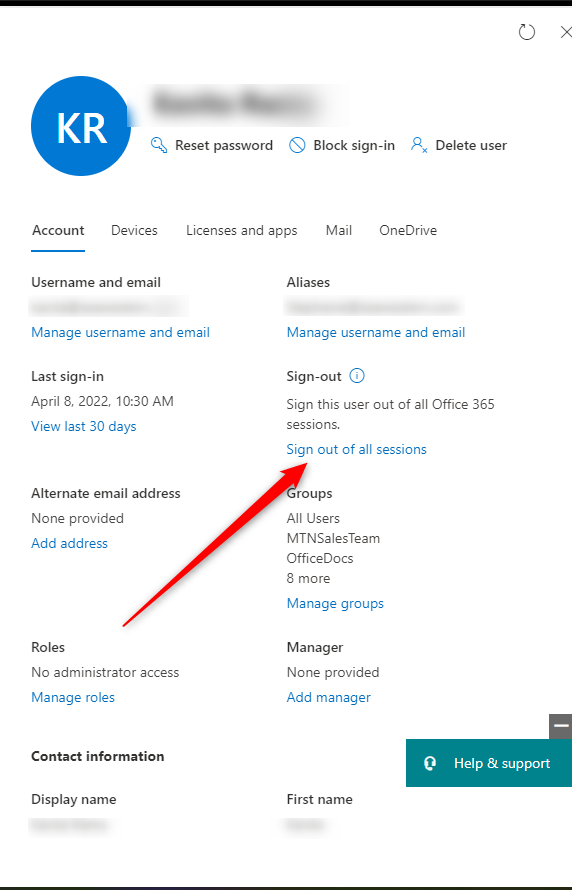
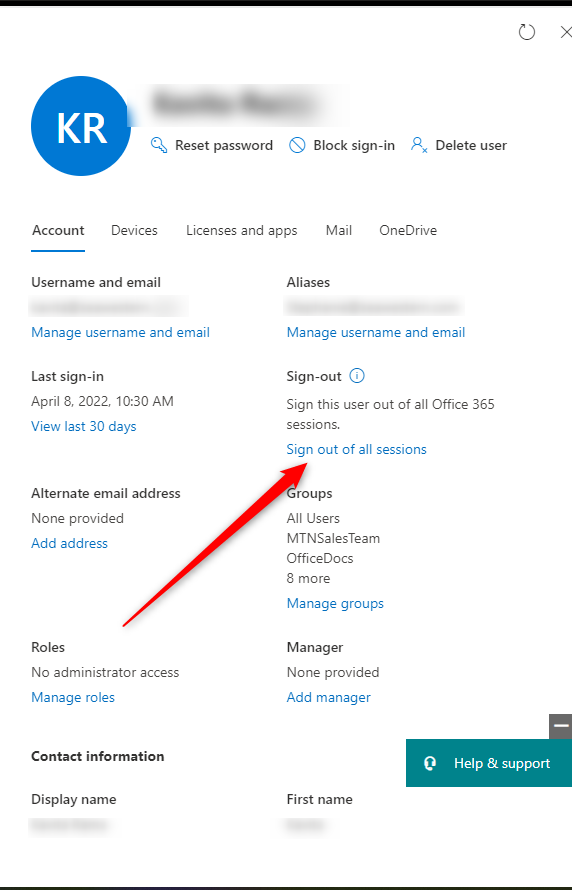
- Sign user out of every Office 365 session
3. Setup MFA
4. Reset MFA if it was already setup (Do this through Endpoint Manager)
**If endpoint manager is not available through 365 admin, going incognito and signing into entra.microsoft.com will bring you to the area below as well**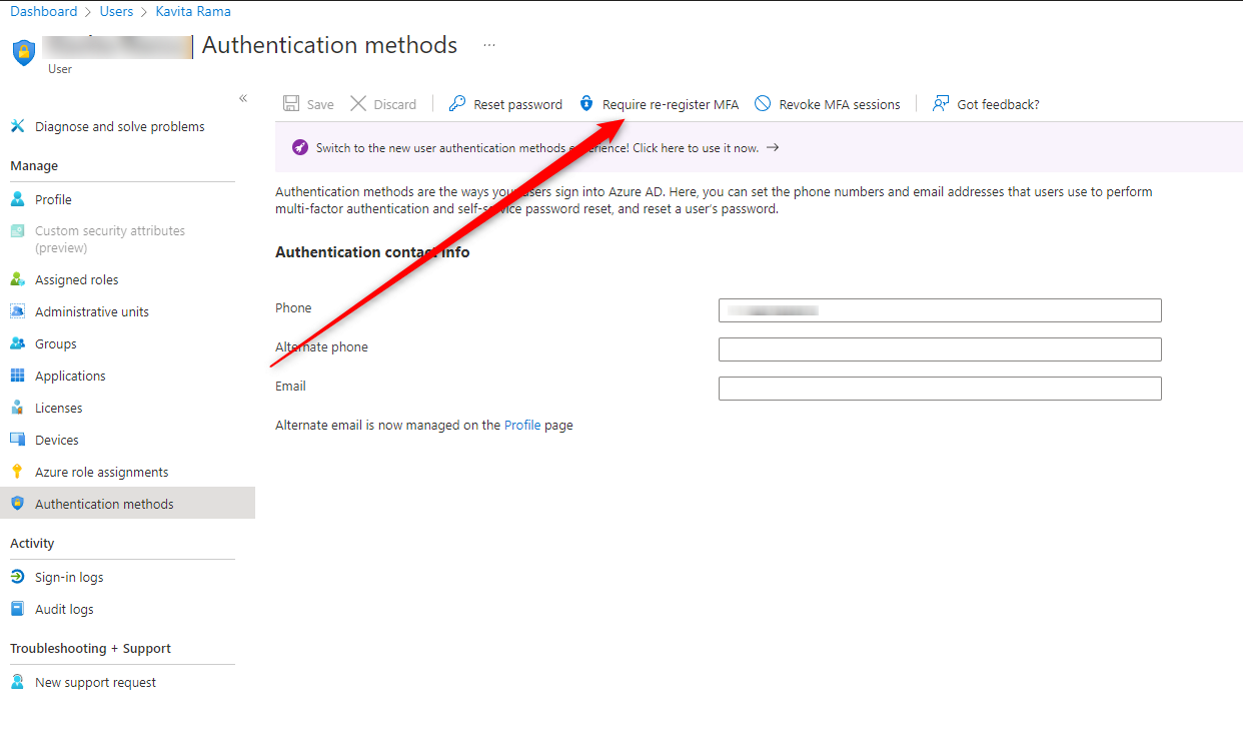
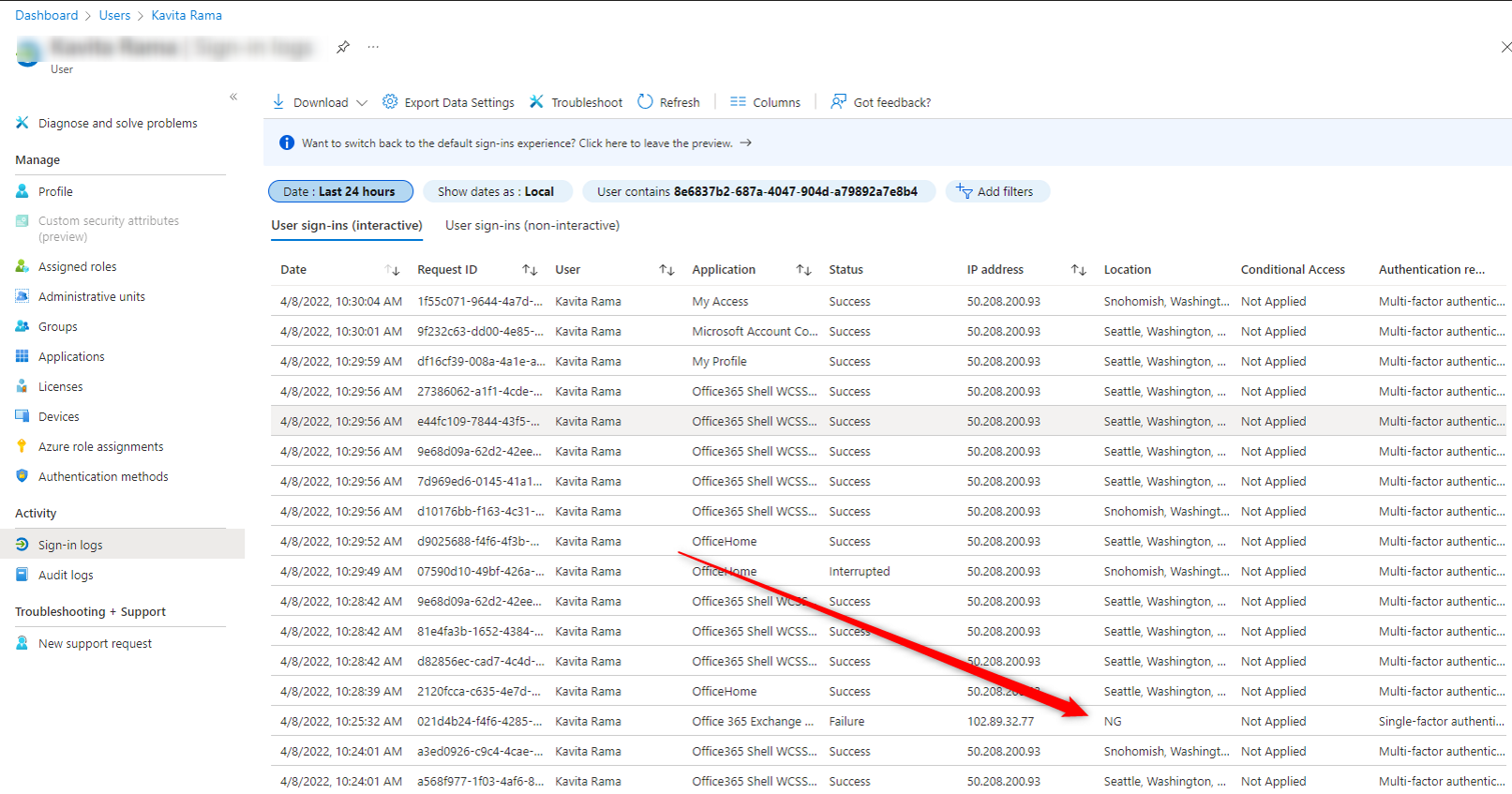
5. Look at sign in logs and take note of irrugular locations. Export data and format into a neat excel workbook and name it "Summary of Breach for [user's name]". We want to make this a report that the user's manager can document since banks (or some vendors) will require some of this info and action plans from our clients to restore access.
6. Look in Outlook OWA (or access individual mailbox through exchange admin center) for any odd rules redirecting emails or deleting emails.
7. In Exchange Admin Center, pull a message trace for any email sent by that user for a timeframe that covers the whole breach. Export those results into a second page in the excel workbook that you started and format it with relevant columns and make it easy for the user to read.
8. Look for any Registered devices in Azure that aren't good devices
9. If user is a Global Admin go to next section
10. Send an email to the relevant manager of that user with the user CC'd with a small summary of what kind of compromise it was (session highjack/user provided access, or something else?) and attach the summary workbook. That will give them the info of when the bad guy got access and what emails they were able to send and to whom. I am attaching an example email to this documentation with sensitive data removed but will show what the client should see.
11. If you're fully satisfied that the account is secured again, remove the user from "Restricted Entities" if they're still there: https://security.microsoft.com/restrictedusers
Was the User a Global Admin?
1. Verify if the user needs to be a Global Admin
2. Remove all unnecessary Global Admins
3. Look for any outbound connectors in Exchange that don't belong
4. Look for any rules in Exchange that don't belong
5. Verify all users have MFA enabled
There is also this company that specializes in digital investigations and stuff, called Asceris. I am putting their name down here as a potential partner in the future https://www.asceris.com/bec if clients ever need a investigation specialist type service that is more indepth than our own stuff (I don't even know if they're more in-depth yet)